
Fast Food: How I got a 20x speed boost on a Power Automate flow
April 2, 2025
Plus: Everything I could find out about capitalization of table and column names
The night before the Northwest Event Show, I added dozens of local restaurants to the content management system for my Convention City QR Cards.
It was too much for my Power Automate flow to handle.
It turns out that I was guilty of a top Power Automate anti-pattern: "Avoid nested For each loops."
It was one of those "I'll get to it later" situations. I knew there was a better way to handle multiple levels of database lookups, but I just wanted to get things working. And in my defense, Power Automate doesn't make it simple.
Here's what needs to happen:
-
You scan a card which contains a code for the trip ticket.
-
The system makes sure that it's a valid ticket number; and if so, loads all the line items.
-
For each line item, look up the Destination and the Activity. (+ Category and Brand, if possible.)
-
Return the results as a JSON object.
This was noticeably slow for anything more than a few records.
I would meet someone at the conference, give them a card, and have to keep up the patter for an uncomfortably long time while the recommendations rendered.
I got lucky. The conference itself was having Wi-Fi issues at registration, and so people thought it was the fault of the network rather than my app. But when my top prospects tried it at home, it was still as slow as ever. That's a problem.
As a quick fix, I went home after the first day and removed most of the destinations from the cards I had already distributed. Instead of 35+ destinations in Convention City, I'd show just 8 to 10, making the delay less obvious.
But I needed to make it faster. Much faster.
New logic
I learned a couple of Power Automate essentials: "Expand Query" and the "Select" action.
The new logic avoids loops with the following actions:
-
List rows of line items with expand query
-
Select columns from the output
-
Compose to add headers to the object
-
Response with JSON object
The result: Sub-second response time for 39 destinations, with four levels of lookup (SKU-Product-Category-Brand).
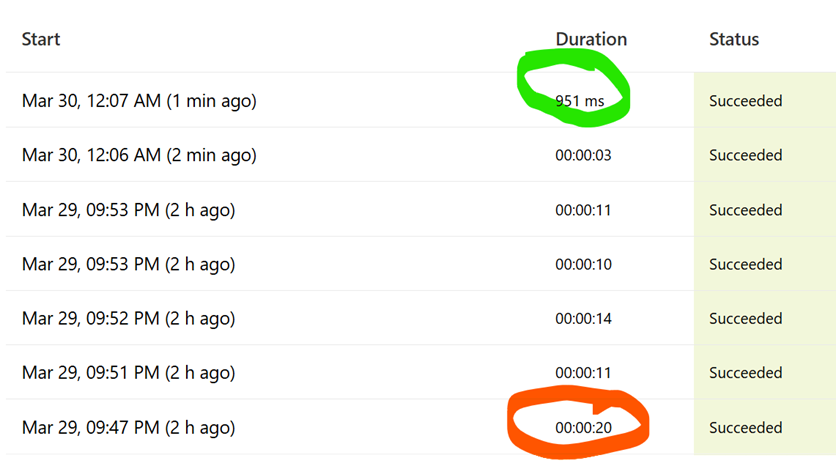
Lesson learned: Build it right the first time.

I know you're hungry so this shouldn't take long
https://qrcard.conventioncityseattle.com/arch?inv=001181&key=1301824269
Don't lose your marbles
How? Put them in jars! And put the jars on shelves!
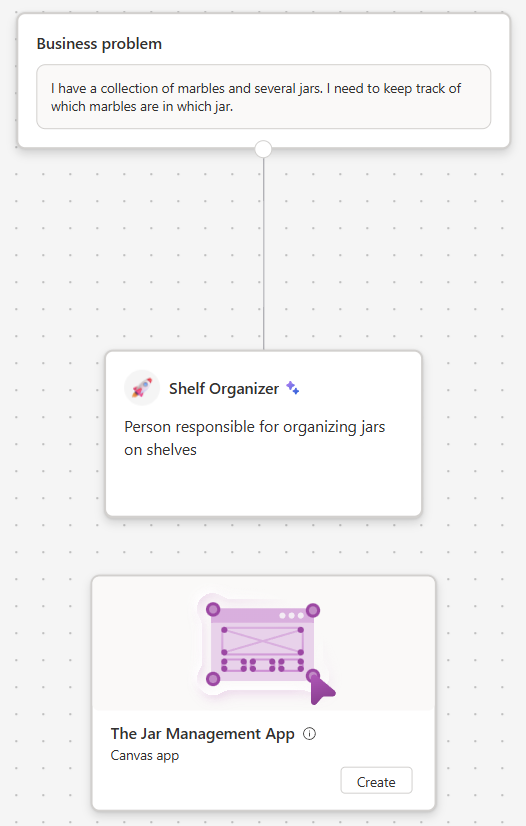
My first Plan
And now, for your entertainment and edification, I present an in-depth exploration of capitalization rules in Power Automate column and table names.
I had to dig around quite a bit to find this collection of techniques, and it took quite a bit of trial and error to figure out what works. I never want to do that again. That's why I stopped everything to write this guide. I hope you find it helpful.
The short version
-
Schema Names: Use for expanding queries.
-
Logical Names: Use for filtering and selecting rows.
-
Lookup Names: Use for filtering rows based on related tables.
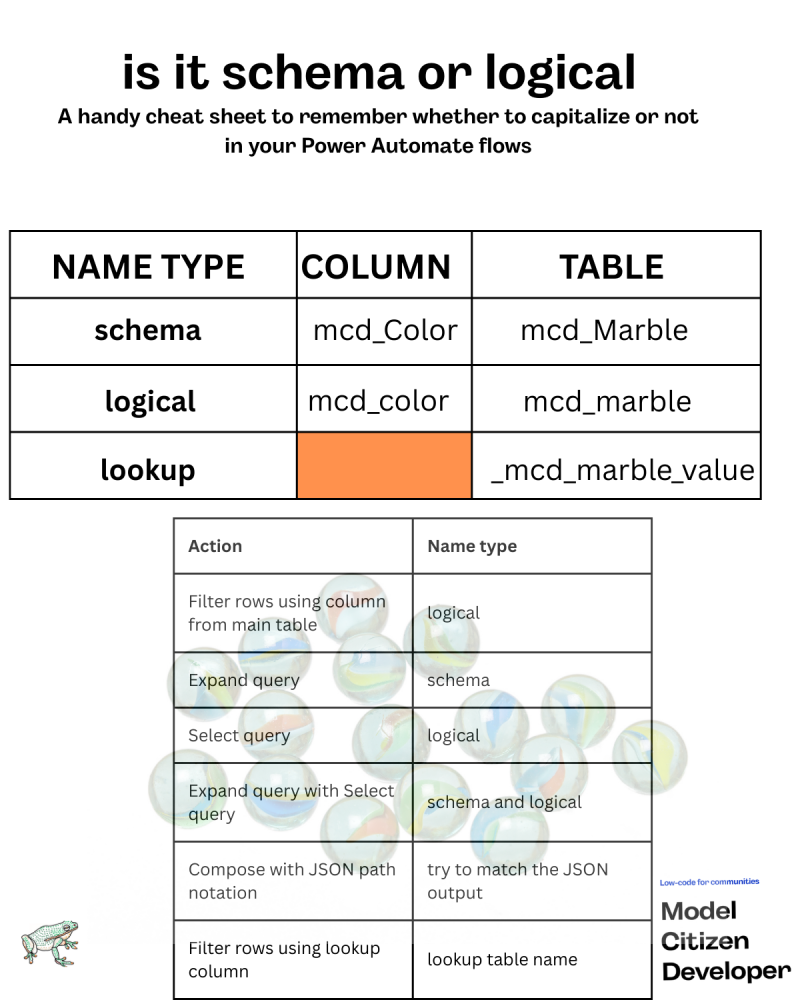
go figure
The longer version
Power Automate has flexible capabilities with amazing performance.
But it's far from straightforward to access related tables in Dataverse. You need to know the precise syntax in each context, and it's especially jarring if you're accustomed to other frameworks for traversing entity-relationship diagrams.
Here's what I've learned -- and I hope it's useful to you!
Schema names
When you create a table, you give it a Display name like Marble or Jar.
Dataverse gives it a default Plural name like Marbles or Jars
Your publisher prefix (mine is "mcd_" for Model Citizen Developer) goes in front of the Display name and you end up with mcd_Marble or mcd_Jar. These are the schema names for the table.
Every column in a table also gets a schema name:
-
mcd_Size column (Decimal type) in the mcd_Marble table
-
mcd_Label column (Single line of text) in the mcd_Jar table
Logical names
The logical name of a column or table is the all-lowercase version of the schema name.
For example:
-
mcd_Size --> mcd_size
-
mcd_Label --> mcd_label
-
mcd_Marble -> mcd_marble
What's the logic behind this? I have no idea.
Just remember that logical = lowercase.
Relationship names
If you create a many-to-one relationship between two tables (e.g. Marbles and Jars), you end up with a Relationship name that looks something like this:
mcd_jar_mcd_marbleid_mcd_marble
Take out the prefixes and it boils down to: Jar is a lookup table for Marble, with the primary key of marbleid.
I've been able to avoid using these unwieldy relationship names in my examples below. But it is needed in other contexts, so I'm including it here.
Lookup table names
Also known as an OData-bound name, this will come in very handy later.
It's the logical (lowercase) table name plus:
-
prefix: "_"
-
suffix: "_value"
So if your table's display name is Jar, plural name Jars, schema name mcd_Jar, and logical name mcd_jar, the lookup column name will be:
_mcd_jar_value
Which name should I use?
Now that you know how to identify a schema name, logical name, and lookup column name, you can start using them in Power Automate flows.
1. Filter on a table column
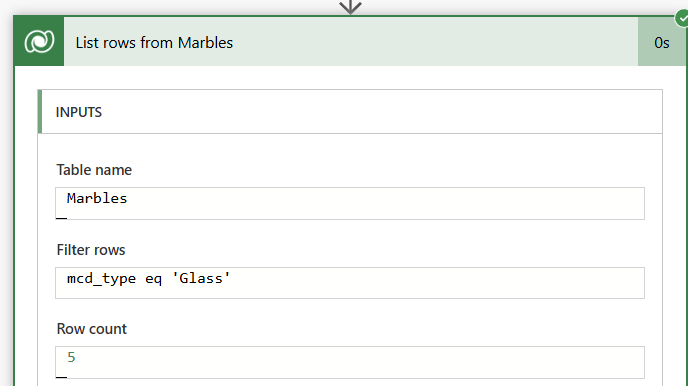
Use the logical column name with Filter rows on a column
You want to look up a Jar by using a text column with a display name of Type.
List Rows action with the Filter rows parameter, using the logical column name.
2. Expand query on a single lookup table
Use the Schema name for an Expand query
You want to look up a specific Marble along with its Jar.
You have the MarbleID in a variable myMarbleID.
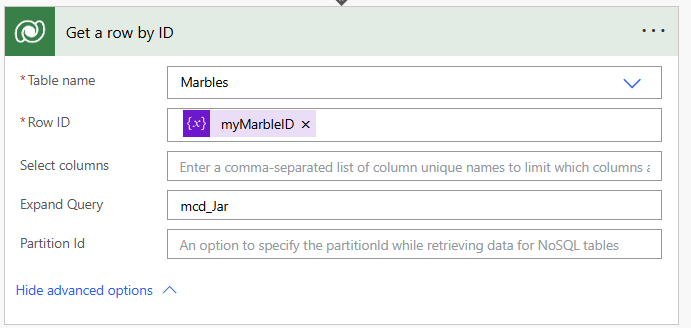
Expand Query uses Schema name of lookup table
Get row by ID action
-
Table name: Marble
-
Row ID: myMarbleID
-
Expand query: mcd_Jar
3. Select query on a lookup table
Use the logical name for a Select query
Let's say you want to limit the fields that come back in a query.
Add $select to the Expand query, using the logical names of the selected columns.
Again, it's Expand with schema name and $select with logical name. If you get this wrong, the flow will fail.
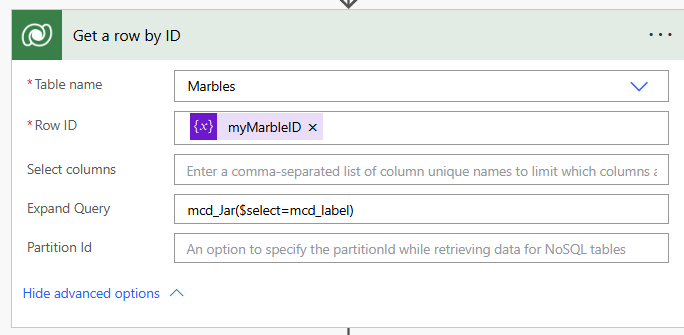
expanding the Expand query with a $select query
Get row by ID action
-
Table name: Marble
-
Row ID: myMarbleID
-
Expand query: mcd_Jar($select=mcd_label)
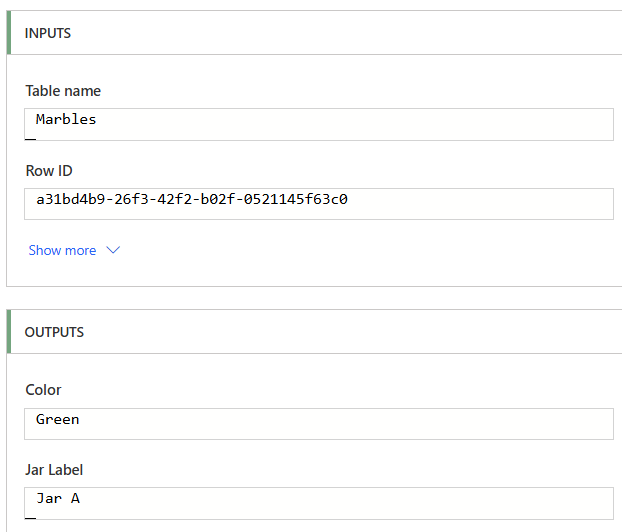
now the Jar Label shows up in the Output!
4. Nested Expand and Select queries
You can use logical and schema names in the same query!
Now that you've figured out the capitalization for $expand and $select, you can do a multi-table lookup!
For each Marble, you want to look up the Jar along with the Shelf that it's on.
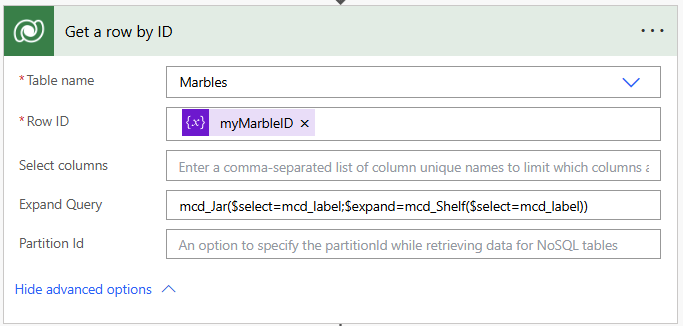
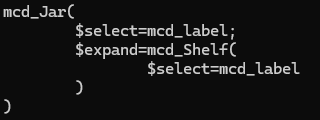
indented version of Expand Query
You can keep going with this as many levels as you want, as long as you keep your capitalization in the right place.
5. Extract values from JSON outputs
The "/" JSON path notation should mirror the output.
You can a Compose statement to inspect the results of a Get row by ID action.
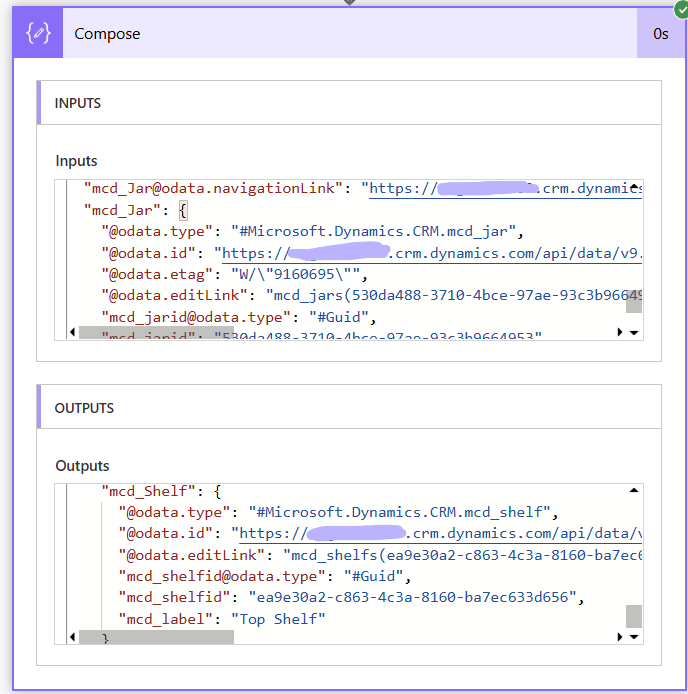
Hey, it's returning JSON
Power Automate returns the results of an action in JSON format. And you can access elements using "/"-delimited JSON path notation.
For example, here's the code behind two Compose statements pulling up the Jar and the Shelf for a given marble.
{
"inputs": "@outputs('Get_a_row_by_ID')?['body']?['mcd_Jar/mcd_label']"
}
{
"inputs": "@outputs('Get_a_row_by_ID')?['body']?['mcd_Jar/mcd_Shelf/mcd_label']"
}
In other words, take the body of the output of the Get a row by ID action (which finds the Marble) and from there, first go to the Jar record and get the label, and then go to the Shelf and get its label.
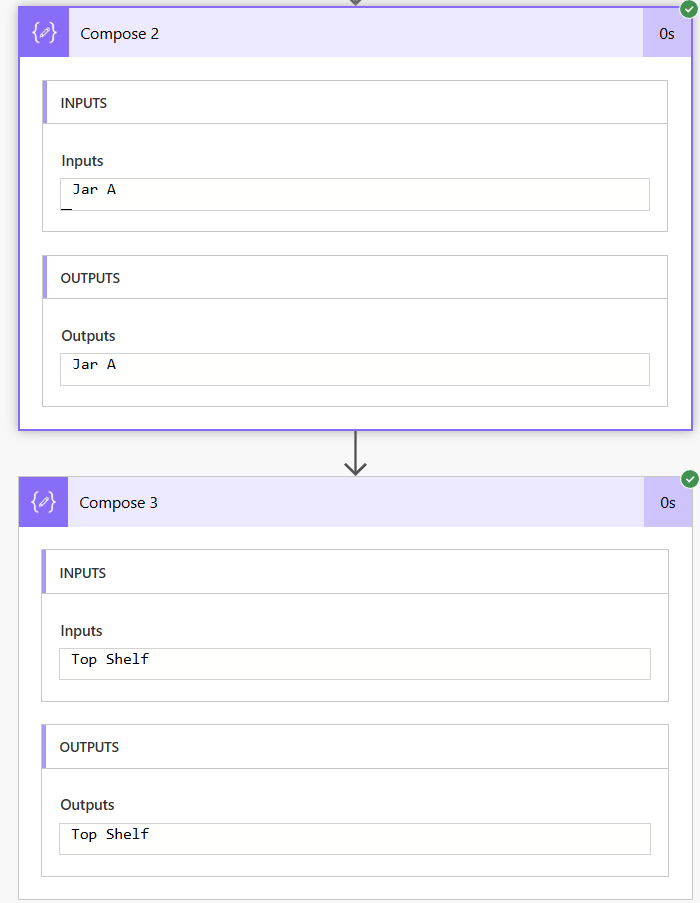
The Compose statements show the values you'd expect
6. Filter on a column from a lookup table
Use the lookup table name in a filter rows parameter.
We've seen (#1) how to find rows matching criteria in the table, and (#2, #3, and #4) how to start from a Marble and use $expand and $select queries to find the Jar and the Shelf, plus (#5) how to extract values from the results.
But what if we know the Jar and we want a list of the Marbles contained inside?
We can do that in one shot with List Rows and a filter query.
For this, we need the lookup table name, which we examined earlier. (Not the primary key column. Or the logical name of the table.)
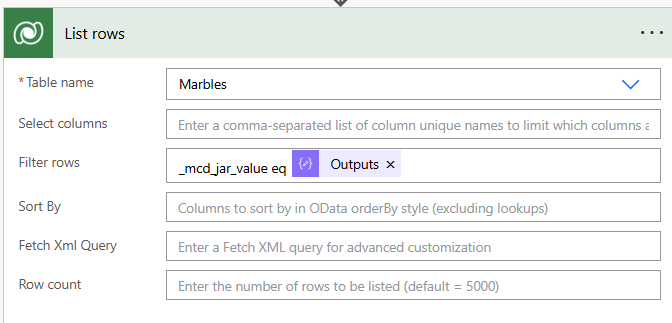
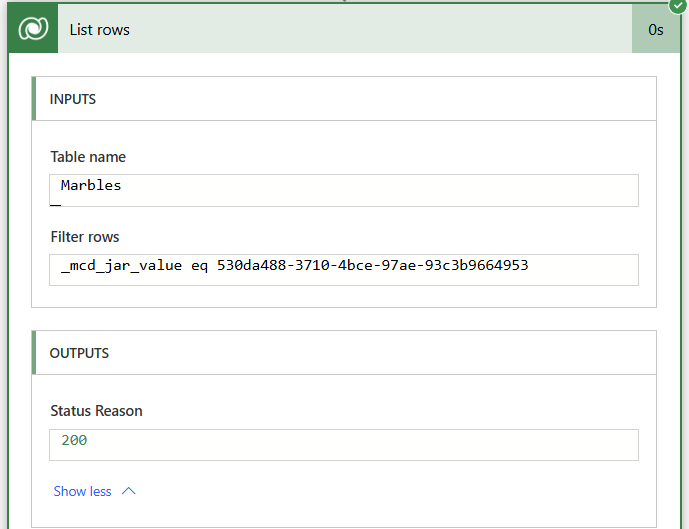
7. Find related rows and do a lookup in one shot
Now let's see if you're paying attention
We can put it all together by adding Expand query to a List Rows with a filter parameter.
This version of List rows gets all the Marbles for a given Jar while also pulling up the Shelf rows, which you can then extract using a Compose action (see #5).
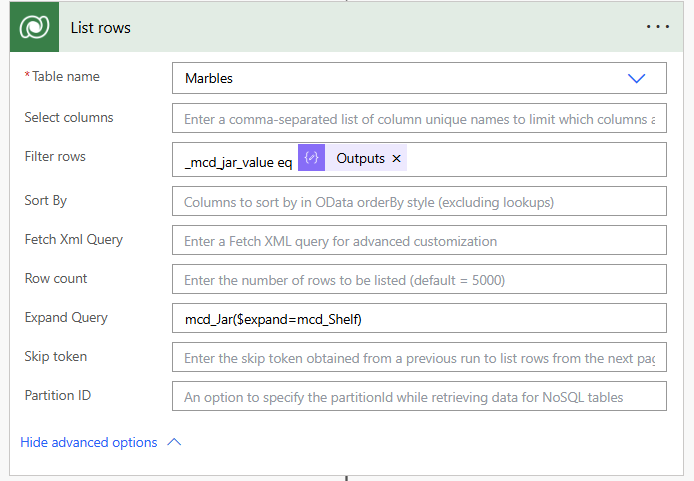
Find all related rows while also doing a lookup
I haven't yet figured out how to find all Marbles on a given Shelf in a single action with this pattern. Let me know if you've done it.
8. Select into a different JSON format
Flatten out your JSON using Select
The whole point of this exercise is to have the tools to grab all the data you need and then put it into a different JSON format for the response to a flow.
Since we know that the List Rows function returns JSON, we can feed the output from List Rows into a Select action.
In this case, let's flatten out the schema.
We can use a Select action to roll our own JSON.
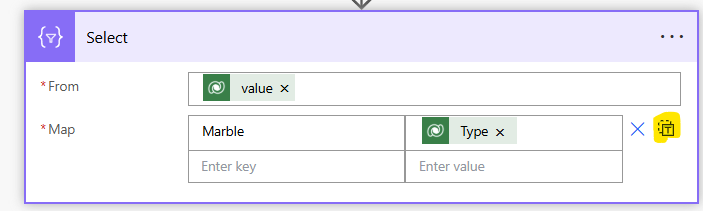
Switch map to text mode
The first part is straightforward, as you can find the Marble Type column using Dynamic content. But you'll have to take a different approach for the lookup tables.
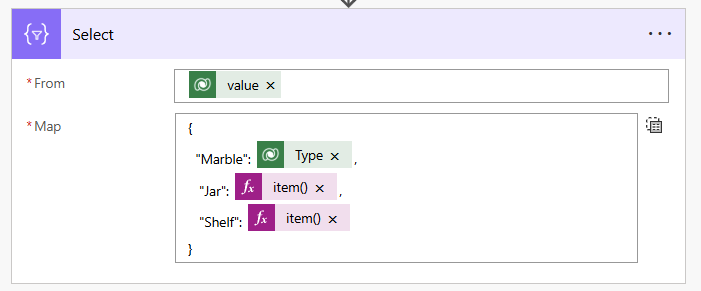
Use the Expression pop-up to reference the values from List Rows
Use the item() function to access each of the rows returned by List Rows.
Then, use the "/" delimiter to access lookup tables and fields.
List Rows returns lowercase property names, and so I'm using lowercase logical names here.
"inputs": {
"from": "@outputs('List_rows')?['body/value']",
"select": {
"Marble": "@item()['mcd_type']",
"Jar": "@item()['mcd_jar/mcd_label']",
"Shelf": "@item()['mcd_jar/mcd_shelf/mcd_label']"
}
}
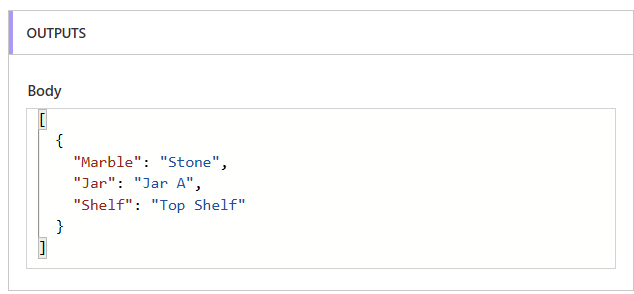
Marble collection in flat format.
As a final step, you can embed the body of the Select statement in a Compose statement to add a header.
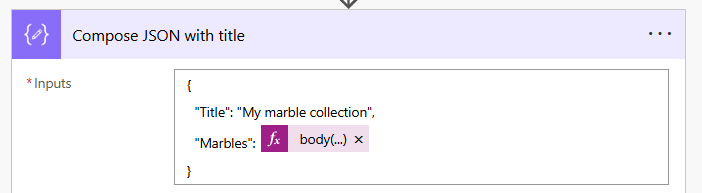
{
"inputs": {
"Title": "My marble collection",
"Marbles": "@body('Select')"
}
}
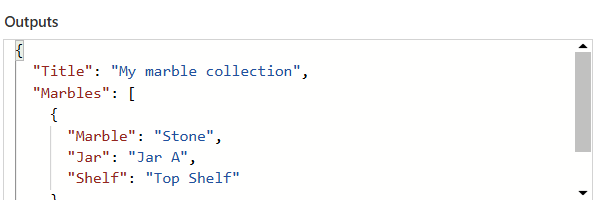
Put this in your return value and you're all set!
Thanks for reading!
And let me know if you can think of better ways in Power Platform to do the same kind of thing.